
Step away.
Stay green.
AlwaysOn is a menu bar app for macOS that keeps you shown as active in Teams, Slack, Zoom, and other workplace apps. Every 45 seconds it moves the cursor one pixel and back, or taps Shift.
AlwaysOn is running on this page, 20 times faster than real time.The menu below is a working copy of AlwaysOn, running 20 times faster than real time. Move your mouse and the next attempt is skipped. Keep still and it's posted.Touch the page and the next attempt is skipped. Leave it alone and it's posted. The icons on the left open the Pulse Log, the settings and the rest.
What it does
- Waits until you've been idle, and skips input while you're using the Mac
- Pauses while the Mac sleeps or locks, and backs off in Low Power Mode
- Keeps you online until a time or a calendar event, or while a command runs
- Work hours with per-day times, a daily break, and days off
- Focus filters and Wi-Fi networks that switch profiles
- Safety stops when you're away too long or the battery runs low
Go get the coffee
- Download it and drag it to Applications. Open the DMG and drag AlwaysOn.app into Applications.
- Open it once. If macOS says it couldn't verify the app, go to System Settings > Privacy & Security and click Open Anyway.
- Allow Accessibility. Notifications, Location, and Calendar are optional.
- Start a session. Click the icon in the menu bar, or press ⌥⌘K.
- Doesn't collect data
- Signed updates from GitHub Releases
- Accessibility access carries over between updates
Pulse Log
Each time AlwaysOn tries to send input. It can't see your Teams or Slack status.
Last 60 attempts
Kept in memory only and cleared when AlwaysOn quits.
One tiny input. You pick which.
Many workplace apps set your status from how long the Mac has been idle. Each input from AlwaysOn resets that clock. Pick one, and the menu at the top right starts sending it.
Keep Online Until
Starts now and stops at the time you choose, even if you pause in between.
Quick picks
Next 24 hours
AlwaysOn only reads events. It never changes your calendar.
Keep online while the build runs.
- It ships inside the app. Run
alwayson installonce to link it into~/.local/bin. - It follows your command. With
run, the session ends when the command exits, even after Ctrl-C. - It works with your launcher. Shortcuts, Siri, and
alwayson://links for Raycast and Alfred.
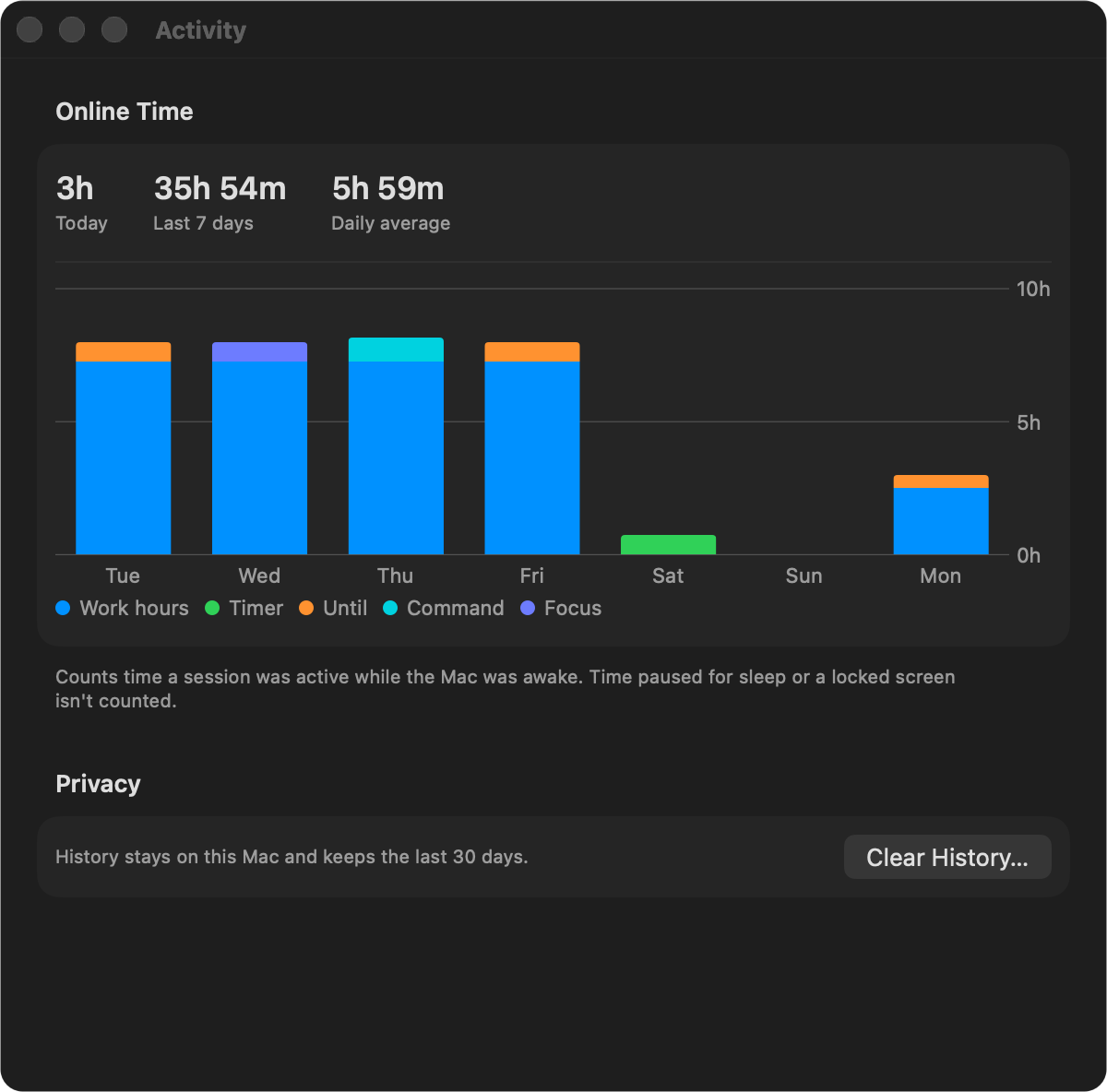
A screenshot of Activity, in Settings. It shows how long you stayed online each day and what started each session. History stays on your Mac and keeps the last 30 days.
AlwaysOn is running up here. Click it to open the menu.